✦ Widget Tips & Setup
How to Add a Widget to Your iPhone Home Screen
Adding a widget to an iPhone Home Screen takes only a few taps once you know the steps, whether it's a Bible verse, weather, or calendar widget.
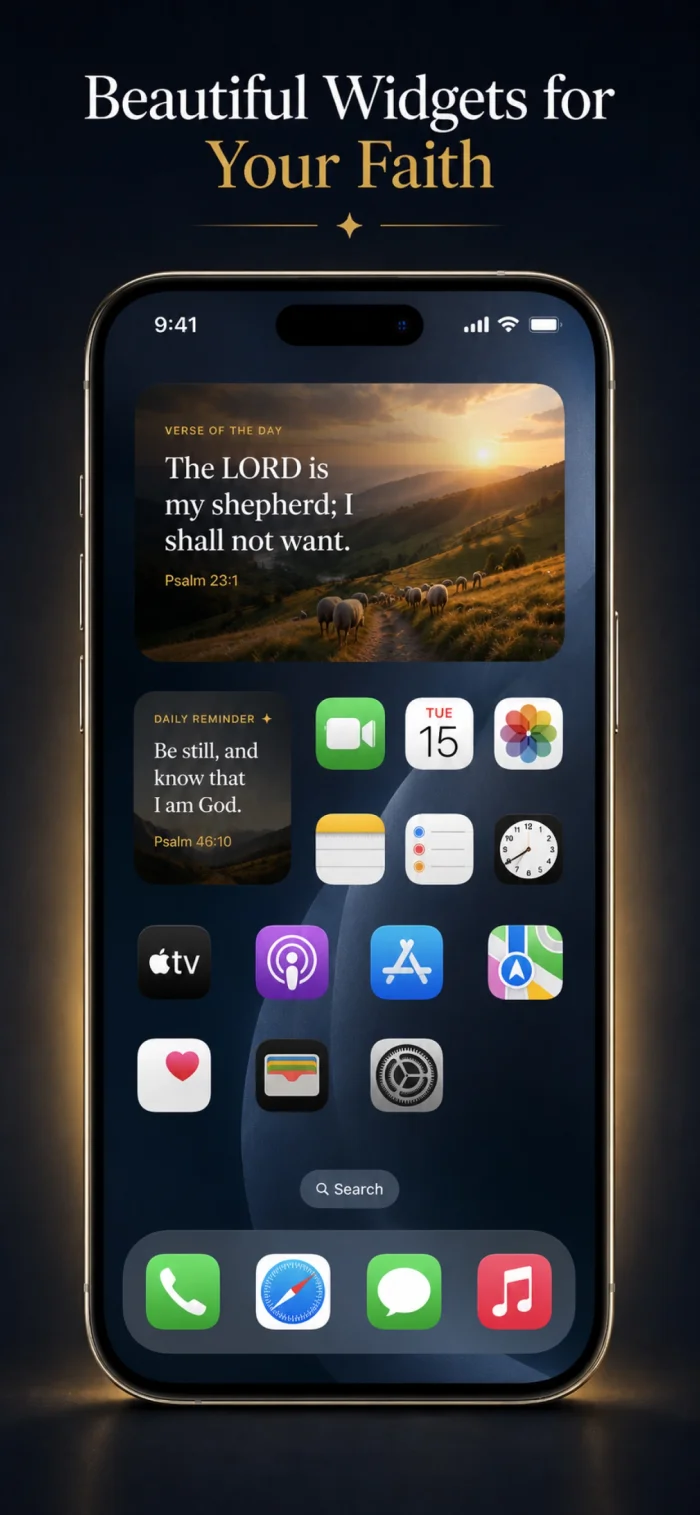
Adding a Home Screen widget
- Touch and hold an empty area of your Home Screen until the icons jiggle.
- Tap the + button in the top corner.
- Search for or scroll to the app you want.
- Choose a widget size, then tap Add Widget.
- Drag it to where you want it, then tap Done.
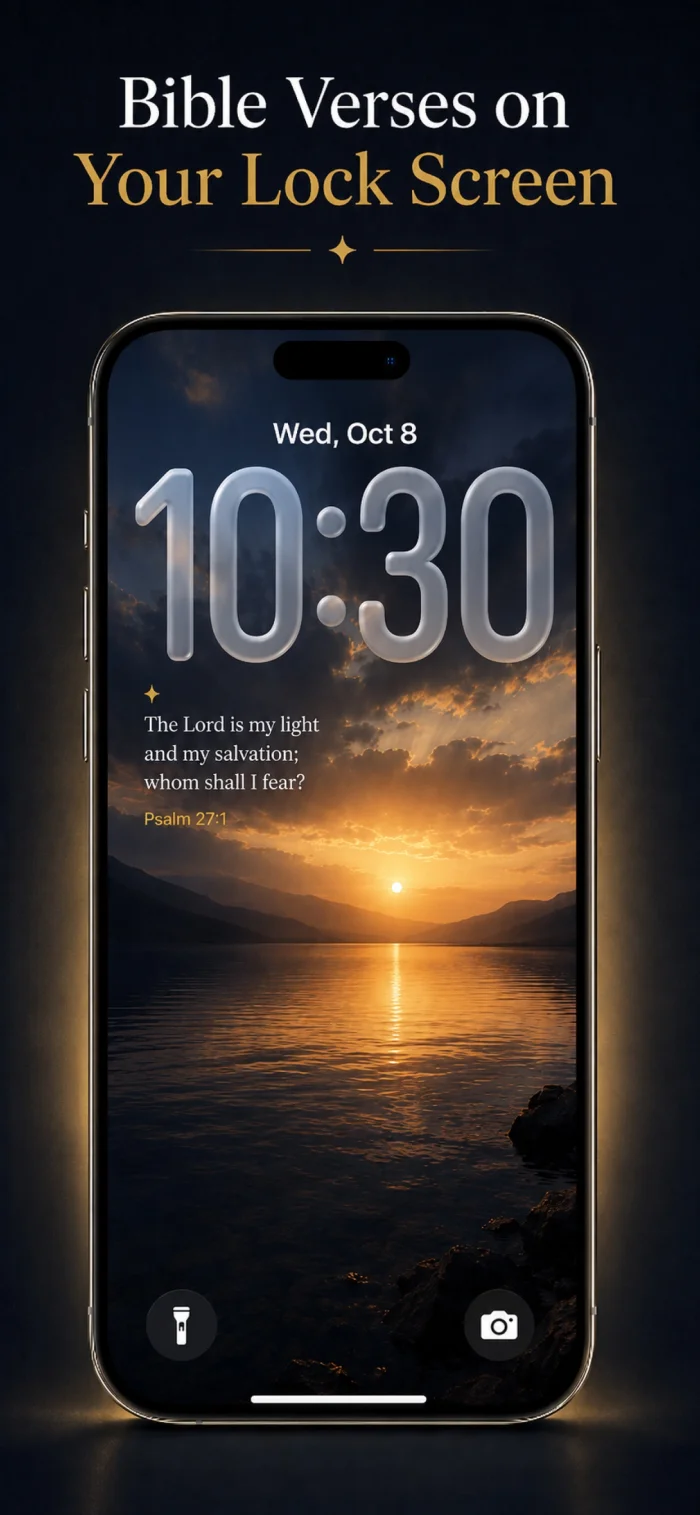
Adding a Lock Screen widget
- Touch and hold your Lock Screen until Customize appears.
- Tap Customize, then select the Lock Screen.
- Tap the widget area below the time.
- Choose a widget, then tap the checkmark or back arrow to save.
Do widgets update automatically?
Yes — most widgets, including verse-of-the-day style widgets, refresh automatically on their own schedule without needing to reopen the app.